Two paychecks of $1,850 plus $200 from a side hustle come to $3,900 for the month. In the free Excel budget template on this page, that made up month is already planned to the dollar.
A blank spreadsheet can feel like homework with no instructions. Paper is friendlier, until you’re adding totals on your phone at 10 p.m. and getting a new answer. Wanting the math done for you is simply practical.
This template keeps it small: one page a month, cream boxes for your numbers and totals that fill in by themselves. Here’s what’s inside, how to set it up in one evening and how to use it on payday.
What’s Inside the Free Excel Budget Template

The file opens on a short “How to use” tab, so you’re never staring at a blank grid wondering where to start.
Along the bottom are twelve month tabs, January to December, plus a Year Summary. Each month is a single page with five parts:
- Money coming in: paychecks, side income and anything else.
- Bills that stay the same: rent, phone, insurance and the like.
- Spending that changes: groceries, gas, eating out, kids and gifts.
- Debt payments: each minimum, plus any extra you can add.
- Savings: an emergency fund and money for costs you know are coming.
Every line has three columns: Planned, Actual and Difference.
The colors tell you what to touch. Cream boxes are where you type. The white ones take care of themselves, and the gold ones show the results that matter most.
That doesn’t mean you need to know Excel. If you can type a number into a box, you can use this.
It’s free, with no sign up and no macros to switch on. No Excel? Upload the file to Google Drive, then open it with Google Sheets.
Twelve pages, five parts each, and nothing to build from scratch.
Set Up the January Tab Once, Even If It’s October
The template arrives with January already filled in. Those numbers are an example, there to show you how the page works.
Start on that tab anyway, even in the middle of the year. The category names on January carry over to every other month, so you only rename them once.
Change “Streaming” to “TV and music,” or “Kids” to “School and activities.” Use words that make sense to you on a tired Tuesday.
Then decide what to do with January’s example amounts:
- Starting in January? Type your own numbers over them.
- Starting later in the year? Clear January’s amounts, so the made up month doesn’t sneak into your yearly totals.
After that, click the tab for this month and begin there.
Try this: Rename the categories before you type a single amount, with a cup of tea in hand. Once that’s done, all twelve months are ready for you.
One round of renaming covers the whole year.
Plan the Month Before Payday, Down to $0 Left to Assign
The Planned column is your best guess for the month, typed in before the money starts moving.
Begin with Money coming in, then work down the page: bills that stay the same, spending that changes, debt payments and savings.
Near the top, “Left to assign” shows what’s still waiting for a job. The goal is $0. That’s not an empty bank account. It means every dollar has a place, savings included.
Here’s the January example from the template. The numbers are made up.
| Part of the month | Planned | Actual |
|---|---|---|
| Money coming in | $3,900 | $3,965 |
| Bills that stay the same | $1,615 | $1,628.40 |
| Spending that changes | $940 | $948.37 |
| Debt payments | $685 | $685 |
| Savings | $660 | $660 |
| Left | $0 to assign | $43.23 left over |
In the Planned column, $1,615 plus $940 plus $685 plus $660 comes to $3,900, the same as the money coming in. So Left to assign reads $0.
Your first plan won’t look that tidy, and it doesn’t need to. Rough guesses are fine in month one. The numbers usually get closer each time you fill them in.
For the thinking behind planning to $0, our zero based budget example walks one paycheck through it line by line. If your bills bunch up around one payday, budgeting by paycheck shows how to match them.
A rough guess you write down beats an exact number you never type.
Fill In the Actual Column a Little at a Time
Then the month happens. The electric bill comes in higher than you thought, a birthday party needs a gift, and the grocery total jumps for no clear reason.
That’s what the Actual column is for. Type in what really came in and went out, ideally once a week instead of all at once on the 31st.
Next to it, the Difference column does the comparing for you. As the template puts it, a plus number is good news.
Here’s how the January example played out:
- The side hustle brought in $265 instead of $200, so $65 more came in.
- Groceries came to $487.12, about $37 over the plan.
- Electric was $128.40 instead of $115.
- Gas came in under, at $142.60 instead of $160.
All together, the month brought in $3,965 and sent out $3,921.77, savings included. That leaves $43.23.
A few lines running over doesn’t mean the plan failed. Some lines go over, others come in under, and the bottom line tells the real story.
Before that $43.23 quietly turns into an extra takeout night, give it a job, like savings or a little more on a card.
If you share money with someone, this is an easy habit to do together.
Say this: “Can we sit down Sunday for ten minutes and type this week’s receipts into the budget together?”
The Actual column isn’t a report card. It’s what next month’s plan is built on.
Let the Year Summary Do the Adding Up

The Year Summary tab fills itself in from all twelve months. You never type on it.
It shows what came in and what went out each month, planned and actual. It also shows where the money really went: bills that stay the same, spending that changes, debt payments, savings and what was left over.
At the bottom, it adds up the year and works out a monthly average. The average only counts months where you’ve typed in actual money coming in, so blank months don’t pull it down.
Why look at a whole year? Some costs only turn up once or twice: car registration, back to school, holiday gifts. Month by month, they feel like surprises. Across a year, they’re a pattern you can plan for.
If the same kind of cost catches you off guard twice, it may be a good fit for a sinking fund. That’s a little money set aside each month for a cost you can see coming.
You don’t have to study this tab every week. A look every few months, or when something changes, is plenty.
One month tells you about one month. Twelve show you how your money really moves.
Give Your Debt Payments Their Own Section
Debt gets its own part of the page, so the payments aren’t buried between groceries and gas.
The January example has five made up debts: a Visa, a Mastercard, a store card, a car loan and a medical bill. Their minimum payments add up to $535.
An extra $150 a month brings the debt section to $685.
Keeping the extra on its own line makes it easy to spot. It’s also the first line you can turn up in a good month, or down in a tight one.
That doesn’t mean every spare dollar has to go to debt. A small starter emergency fund can keep the next car repair off a card.
Wondering where that $150 should go first? The same five example debts appear in our free debt snowball spreadsheet, which shows the month each one is paid off. You can also try your own numbers in the debt payoff calculator.
An extra payment you can see is one you’re more likely to keep making.
Prefer a Pen? Use the Printable Page Alongside It
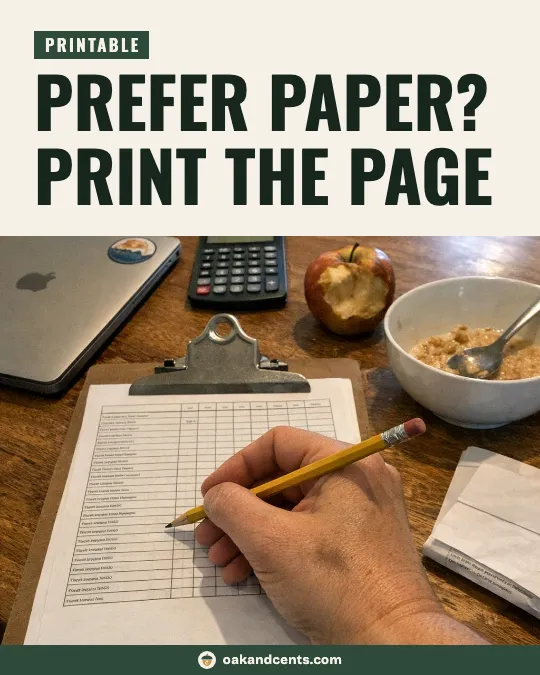
Some evenings, opening a laptop feels like one thing too many. That’s okay.
The free Monthly Budget sheet on this page is the same idea on paper. It has Planned and Actual columns for each part of the month and a Left to assign line at the bottom.
You can plan on paper at the kitchen table, then type the totals into the template once a week. Or stick with just one. Either way works.
Paper is easy to keep on the fridge where everyone can see it. The template does the adding up and keeps the whole year in one file.
If you like writing things down, the full set of printable budget sheets adds a bill tracker, an expense tracker, a debt list and more.
The right format is simply the one you’re happy to reach for.
If the Planned Column Won’t Come Out to $0
Sometimes you type everything in, and Left to assign shows a minus number. More is planned than is coming in.
That’s information, not a verdict. Rent, groceries and pay don’t always move together.
Start with spending that changes, like eating out or gifts, before you touch the bills that keep the lights on. Housing, utilities, food, getting to work and minimum payments come first.
This template fits well when your pay is fairly steady and you like seeing a whole month at a glance.
If your pay changes a lot, or you’d rather plan one check at a time, a paycheck budget may suit you better.
If bills are already past due or a debt has gone to collections, the budget can show the gap. It can’t close it on its own.
Sorting out what gets paid first is everyday work for a nonprofit credit counselor, and the NFCC website can point you to one.
For a gentle way to start while you’re still paying things down, see how to make a budget when you are in debt.
A short month on paper is still a month you can see clearly.
Type Your Next Paycheck In Tonight
That $3,900 month at the top of this page was made up. Yours will look different, and it only takes one real number to begin.
Tonight, download the template, rename the categories on the January tab and type your next paycheck into Money coming in.
Tomorrow, add your rent and the other bills that stay the same. By payday, the Planned column can be done.
Then, once a week, add what really happened. If you’re paying down a card, the free debt tracker makes a good companion.
One paycheck typed in, and your budget has begun.